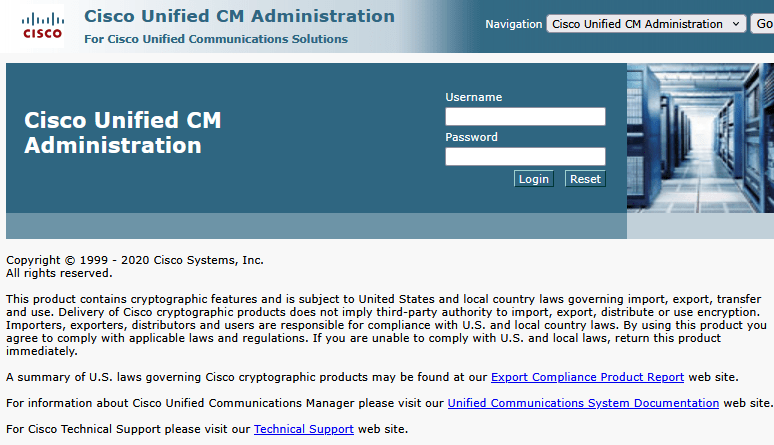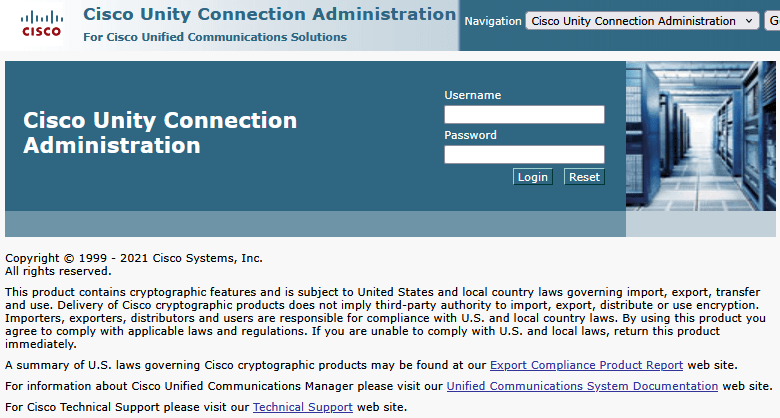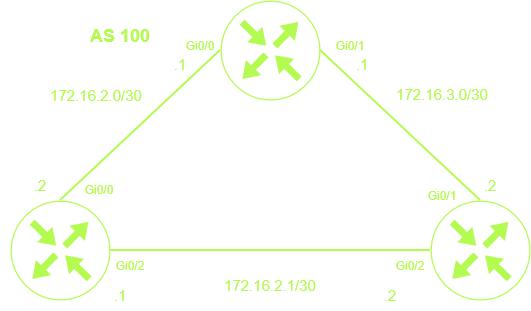
• Cisco enterprise phone system is known as Cisco Unified Communications Manager combine with Cisco Unity Connection. I will admit I’m no expert at either of these systems, but I have worked with both Call Manager and Cisco Unity out in the real world, and I’ve had some training on them. But hey let’s learn more about them together and see what we can come up with. Cisco also has Cisco Webex calling but I’ve only had a little bit experience with that. The only other call manager I’ve been trained on but haven’t touched outside of a lab is BroadSoft which is also owned by Cisco.  I only have older versions of Call manager and Cisco Unity things might look a little dated. I would like to get new versions but maybe one day.

    Cisco call manager is in a nutshell is a PBX, it is where the IP phones, softphones, users, gateways and video endpoints are configured. Call manager handles the call routing, dial plans, voicemail integration (Cisco Unity), call admission control and media resources such as your hold music. Example if you make a call to someone and they don’t answer the phone could be configured to send the call to another number or send it to voicemail.

    Cisco Unity does voicemail, voicemail recording, voicemail features, message storage and well as IVR features such as your auto-attendant & call candlers for example if you call a company and they say for Sales press 1 for IT support press 2 and so on is configured in Cisco Unity.

    Cisco call manager and Cisco Unity can be setup and installed on-premises in a virtual environment or on a Cisco UCS server or it can be setup in a cloud as Cisco Unified Communications Manager Cloud.

    My voice Lab

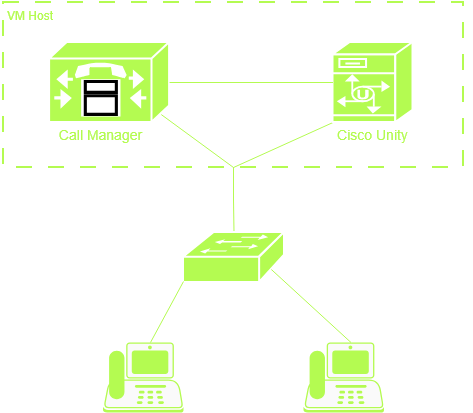
    The way I have my call manager and Cisco unity lab setup is that I have both call manager and Cisco unity installed on my Dell power edge R630server that is running VMware ESXI and I have that connected to a 2960 switch my two Cisco 7940 VOIP phones are connected to which provides the POE to the phones. To access my voice map, I have USB Ethernet adapter with the same subnet as my voice lab.

    My overall goal with my lab is to setup an enterprise system where you call a number it goes to an auto-attendant and route calls to different departments, setup voicemail, call forwarding and so on my plan is to also post on here my process. I don’t think I’m going to be making big jump in building this out till after the holidays,


    + ,
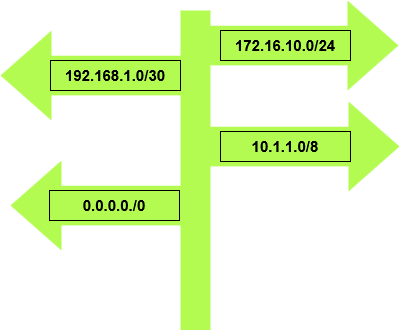
  • Routes! Routes tell network packets how to traffic across the network to get to their required destination by picking the best path. There are three different types of routes such as default routes, static routes and dynamic routes. Each one has its own pros and cons.  Routes are stored in the routing table of routers and layer 3 switches and other layer 3 devices.

    There’s a different way to routers pick the best route to send packets one way is using the administrative distance static routes and dynamic routes all have their own administrative distance is a way that Cisco makes a trustworthy decision to select the best path. Routes can also be manipulated by changing administrative distances, route maps and conditional forwarding. Here is the list the route source and the administrative distances for the most common route sources.

    Route SourceAdministrative Distances
    Connected interface0
    Static route1
    External BGP (eBGP)20
    EIGRP90
    OSPF110
    External EIGRP170
    Internal BGP (iBGP)200

    Let’s talk about each route type

    Default routes

    Default routes are mainly manually configured, if the router is not aware of the of the destination in the routing table the router sends the packets out to the default route, example of a use case would be to send all internet traffic out to one interface or to a core router.

    Default route configuration follows the following syntax

    R1(config)#ip route 0.0.0.0 0.0.0.0.0 10.1.1.1

    Or

    R1(config)#ip route 0.0.0.0 0.0.0.0 gi0/0

    The 0s tell the router to send all unmatched traffic to 10.1.1.1 or out interface gi0/0

    Default routes help simplify routing tables however default routes can hide routing issues when troubleshooting networking issues and not ideal for large networks.

    Static routes

    Static routes are manually configured by the network engineer and tell the router which path to

    send packets, they can be configured to sent to a specific network or to a specific host. Static is straight forward to configure and do not require any constant communication like dynamic routing protocols. Static routes do have a limitation when it comes to having to configure on large networks which would require a heavy workload on anyone on the networking team, there is also no automatic fail over unless configured as a floating static link. Static routes have some pros such are they are predicable admin know where traffic is going to go, static routes lower CPU usage not constantly sending updates like dynamic routing protocols, they are good for small networks or point to point links, They also provide a layer of security as they do not advise routing information with other routers on the network.

    Static route configuration follows a similar syntax is default route starting with ip route followed by the Destination | Destination mask | forwarding router’s address

    R1(config)#ip route 10.1.0.0 255.255.0.0 172.16.1.1

    Or for a host

    R1(config)#ip route 10.1.1.10 255.255.0.0 172.16.1.1

    Or

    R1(config)#ip route 10.1.0.0 255.255.0.0 gi0/0

    Dynamic routes

    There are different routing protocols for dynamic routes EIGRP, OSPF and BGP just to name the most common ones, there is also internal and external routing protocols, both EGIRP and OSPF are internal routing protocols and BGP is an external routing protocol. EIGRP, OSPF and BGP all have their different ways of determining how to choose the best path and how they calculate the best path to send packets to reach its destination.

    Routing protocols are configured by the network team once configured they automatically discover, share and update routes between routers. Dynamic routing protocol work really well for large networks. Dynamic routing protocols provide fault tolerance if a link fails re routes traffic with minimum down time, they also reduce workload for the network team not having to manually added each route one by one. The cons of dynamic routing protocols use more resources on the router such as RAM, CPU and bandwidth updating, maintaining routing tables. If not configured properly there is a chance of creating a routing loop and security concerns allowing someone to intercept routing updates.

    There are different ways to configure EIGRP, OSPF and BGP, there is also way to get these protocols to talk to each other using route redistribution. I’ll do a deep dive in to each of these protocols going forward and how to configure them and different ways of troubleshooting each protocol.

    Troubleshooting static routes and default routes

    here are some of the commands that I would use, along with the normal troubleshooting commands such as ping, trace route, checking interface status, and interface configuration, make sure the interface is not shutdown and has the correct IP address.

    R1#show ip route – show the routing table and see your static routes and the default route that is configured

    R1#show run | ip route – will show the configuration of the static routes and default routes that are configured on the router.

    R1#show run | ip route 0.0.0.0 – will bring up the configuration of the default route.


    + ,
  • Network Topology Architectures has a few different designs such as three-tier, two-tier / collapsed core, spine-leaf mainly for data centers, small office/home office (SOHO), and on-premises/cloud. One of the reasons these make complicated large networks less completed and give them more of a hierarchy design.

    Three-Tier Architecture

    Three-Teir Architecture design works well for large enterprise networks as well as ISP environments,

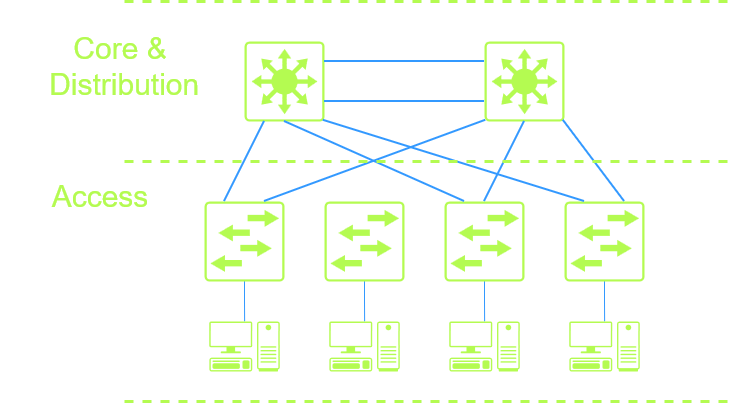
    They help make complex networks easier to manage, allow easier scalability making adding devices/upgrading easier. Also, more reliable with more layers of redundancy and better performance. The draw backs are cost, and it does make the network more complex. The Three-Teir consist of 3 layers the core, distribution and access layers

    Core Layer – the core layer is the backbone of the network, connects to the ISP, connects to other branch offices. Core Layer would be configured with Routing Standby protocols. The Core layer has multiple connection to the distribution layer This is where high end devices would operate.

    Distribution layer – This layer provides communication between the access layer and the core layer. This layer has redundancy build in for the access layer switches and to the core layer. The distribution layer applies access-lists and QoS policies.

    Access Layer – The access layer is where all the users and end devices such as computers, phones, printers, servers, access points, etc., are connect to the network. This layer allows users to share data and resources within internal the network through the distribution layer. Network segmentation happens at the access layer with VLANs.

    Two-Tier

    The two-tier design also known as a collapsed core, the core and the distribution layers are combined. This design good for smaller networks and is more cost efficient with eliminating the core layer. The Core and distribution layer functions as both the core and distribution layers in the two-tier design. Two-tier design still allowed scalability and easier expansion as well as redundancy.

    Spine-Leaf Architecture

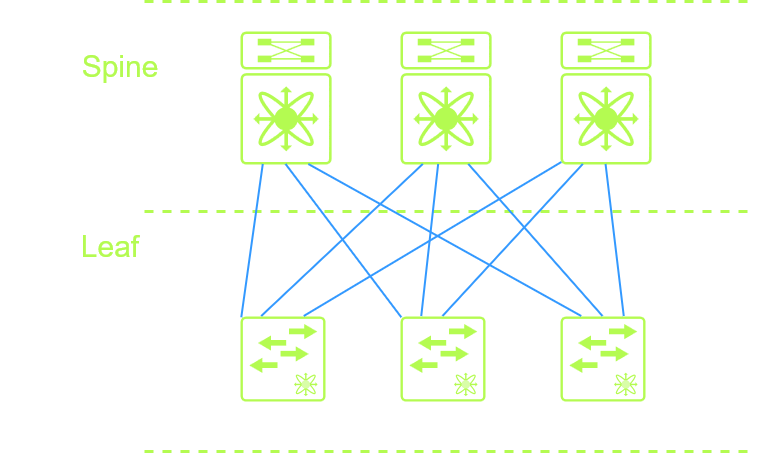
    Spine-Leaf Architecture – is modern design that is for data centers, AI, and cloud environments, this is for very high bandwidth and high performance, with little hop count between devices. This design creates a full mesh allowing for easy scalability allowing to add more spine and leaf switches if as needed.  This design is more costly and is normally managed by Cisco DNA center now called Cisco Catalyst Center using an overlay and underlay network. You will see mostly Cisco nexus devices at the spine and leaf design.

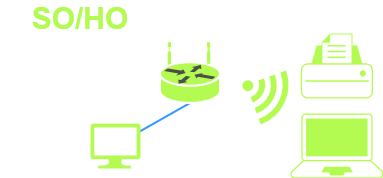
    small office/home office is a flat network sometimes just the internet modem/router that your ISP provides, in other cases with a firewall/router and switch and a device that provides wireless. SO/HO have a small number of end users and devices such as computers, laptops printers. SO/HO are not as costly and can be plug and play and does not require much administration.

    on-premises is when all networking, servers, storage, and software is located locally on site. Everything falls on the local IT team to manage. Start up costs are higher such as space for networking devices, power, cooling and maintenance, physical security is required as well as Disaster recovery. This is used a lot for sensitive data such as healthcare or financial.

    Cloud is hosted at places such as AWS or Azure and can be based on a pay as you need allowing to spin up and turn down different services during high traffic times if required. Disaster recovery is done by the cloud provider, also security relies on the provider as well leaving a chance for some risk.


    +
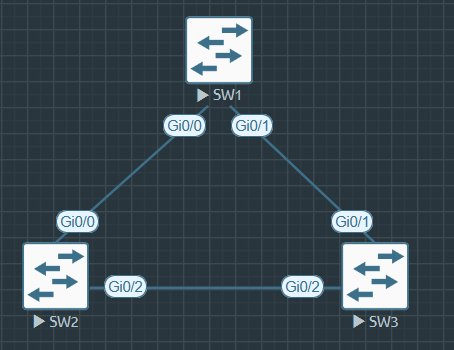
  • With the scaling of today’s networks switches end up connecting to each other, sometimes a switch is connected to a switch to for more access ports in a growing office or connected for redundancy between switches, if a link fails traffic can go through one of the other links that the switch is connected to, however could create a huge problem know as a switching loop. If you have 3 switches connected into each other link in my diagram, SW1 would send a broadcast to switch SW2 and send same broadcast in to SW3 and would send it back in to SW1 and the loop would start. Switch CPU would go to 100%, connectivity will be very slow or drop and there will be endless broadcast frames going out the interfaces, bandwidth gets fully consumed. We are talking about full network apocalypse!! To stop this switching loop from occurring Spanning Tree Protocol (STP) is used. STP is an older protocol but there are newer versions that I will cover during the post, I just wanted to go over why we needed STP in the first place, STP is an old protocol, I wanted to go over why it needed and how it is used today, I will go over the different modes in this post.

    Spanning Tree Protocol creates a loop free network STP is defined as IEEE 802.1D. STP blocks/disables ports to stop the loop from happening, only allowing one to be active along the network path between 2 switches. If there is a failure on a link between the switches STP will auto reconfigure the topology and active ports that were blocked and restore connectivity.

    Spanning Tree Protocol goes through an election process to select a Root bridge which exchanges bridge protocol data units (BPDUs) which messages the switches to determine which switch ports should be blocked and which should forward traffic. The root bridge is elected based on the bridge IDs, the bridge with the lowest BID is elected as the root bridge. If there is a tie with the BIDs the switch with the lowest MAC address with be elected as the root bridge.  The non root switches will determine which port is the root port, designated port and the blocked port.

    Root port – The lowest cumulative path cost to the root bridge only non root switches have a root port.

    Designated Port – Each network the port with the lowest cost to the root becomes the designated port the switch wit the s port forwards traffic to the root.

    Blocked port – All other ports that would cause a switching loop are blocked they receive BPDUs updates but do not forward them.

    During STP convergence ports going through the following states:
    Blocking – does not forward data, does not learn MAC Addresses
    Listening – Does not forward data, does not learn MAC Addresses
    Learning – does not forward data, does learn MAC Addresses
    Forwarding – Does forward data, does learn MAC Addresses
    Disabled – does not forward data, does not learn MAC addresses

    There are restraints with spanning tree protocol such as slow convergence time taking up to 50 seconds which is not acceptable for voice or video, single root bridge all traffic flows through the root bridge could cause network bottlenecks and only one path per VLAN. Modern switches don’t support STP and see it as legacy even in my lab with my old Cisco 2960 does not have the older STP version. Cisco switches come the default of PVST+ or RPVST.

    To deal with the above issues with STP and with changing technology there are different versions of STP such as the following

    • PVST+ – Cisco Proprietary – Per-VLAN Spanning Tree, load balancing across VLANs
    • RSTP – convergence in 3–6 seconds
    • RPVST – Cisco Proprietary – Combination of the rapid convergence of RSTP and the per-VLAN control of PVST+
    • MSTP – Multiple STP instances mapped to VLAN groups

    Configuring Spanning-Tree Protocol

    Configuring Spanning-tree is done in the global configuration mode in the switch using the following commands depending on which mode you want to use.

    SW1(config)#spanning-tree mode (mst | pvst | rapid-pvst)

    When configuring spanning-tree it’s a good idea to configure BPDU Guard on access ports to protect against rouge devices, if an interface with BPDU Guard enabled will go into err-disable if it receives any BPDUs.

    BPDU Guard is configured under the interface mode using the following command.

    SW1(config-if)#spanning-tree bpduguard enable

    Another good idea when configuring spanning tree is to configure spanning tree port fast which allows interfaces to skip the learning and listening stages of STP this is used to stop end devices waiting for the STP stages and allow for DHCP processes from timing out and VOIP phones to register quickly with the voice gateway/ Cisco Unified Communications Manager. To configure port fast it is also done under interface mode with the following command.

    SW1(config-if)#spanning-tree portfast edge


    Configuring Spanning-Tree Protocol MST

    To configure Configuring Spanning-Tree Protocol MST Multiple Spanning Tree, each you VLAN are configured as it’s own instance you also configuration revision number that allows for easier updates when making changes to your STP MST configuration, to show how to configure this I’ll be using the following topology with 4 VLANs configured.

    The example I use is in my above topology with the following commands on both SW1 & SW2.

    SW1(config)#spanning-tree mode mst
    SW1(config)#spanning-tree mode mst configuration
    SW1(config-mst)#name MST-LAB
    SW1(config-mst)#revision 1
    SW1(config-mst)#instance 1 vlan 90
    SW1(config-mst)#instance 2 vlan 100
    SW1(config-mst)#instance 3 vlan 110
    SW1(config-mst)#instance 4 vlan 120

    Verify Spanning-tree MST configuration with the command show spanning-tree mst or Show spanning-tree mst 2

    You can see the different MST instances are broken up and witch they belong to and you can  see how MST0 by default has all the VLANs that have not been assigned to it.  


    Troubleshooting Spanning tree Protocol Commands


    show spanning-tree summary

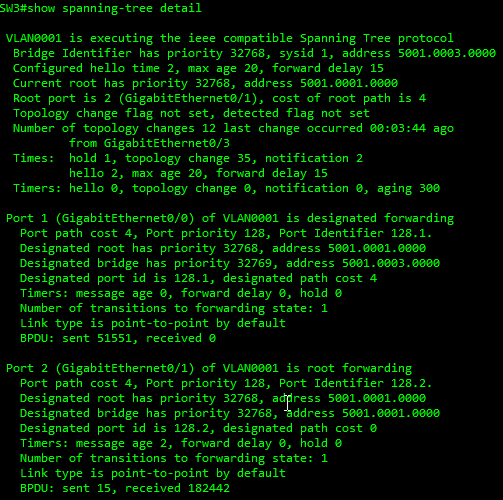
    show spanning-tree detail

    show spanning-tree root

    show spanning-tree interface

    show spanning-tree vlan

    Spanning tree is a great protocol, in my years of networking I haven’t really had to touch it or configure it the most I’ve the only thing I’ve had to do was for troubleshooting is remove the spanning-tree bpduguard command off an interface and add spanning-tree portfast edge to an interface I’m sure everyone has different experiences I’m just speaking for myself.


    + ,
  • VLANS stands for Virtual Local Area Network they are configured to break up networks in to logically segments into multiple broadcast domains. VLANS can be used to group like devices together such as end user devices, VOIP/Video devices, printers, services or separate traffic from different departments, in some ISP environments VLANs assigned to each customer to separate traffic from other customers, You would have a customer VLAN (C-TAG) and another VLAN know as a outer VLAN or service VLAN (S-TAG) is added this could be for town or neighborhood this is known as double tagging in the ISP world. 

    VLANs are configured on network switches and operate at the layer 2 level of the OSI mode. VLANS tag ethernet frames with VLAN ID which is a 12-bit field in the 802.1Q header. VLAN ID ranges from 1 to 4094. Normal range from 1-1001 and the extended range from 1006 to 4094. VLANs 1002-2005 are Cisco reserved for legacy tech and can not be used. Issuing a Show VLAN command will show those 4 VLANs are used 1002 – Fiber Distributed Data Interface (FDDI), 1003 is used for token-ring, etc.

    Traffic can only send between the same VLAN this is done by when switches examining the VLAN Tag and forward out the interface that are assigned the VLAN, if the frame does not have an Untagged frame is received it is set interfaces with the default/native VLAN. In order for VLANs to communicate with other VLANs with different IDs require a layer 3 device such as a layer 3 switch or a router and Inter VLAN routing must be configured.

    There are different types of VLANS

    • Data VLAN: used to carry data traffic mostly from end users
    • Voice VLAN: Configured for voice traffic, they tag voice traffic and separate from data traffic and ensure QoS and reduce jitter.
    • Management VLAN: Used to separate management traffic from the rest of the network such as SNMP, SSH, syslog traffic.
    • Default/Native VLAN: Default or Native VLANs are interfaces that are all in VLAN 1 by default with out any configuration on a management switch. It’s always a good idea to change the Default/Native VLAN to a different VLAN ID than 1.
    • NULL VLAN: Are VLANs sometimes configured to assign interface that are not in use, instead of them being assigned to a default/native VLAN.

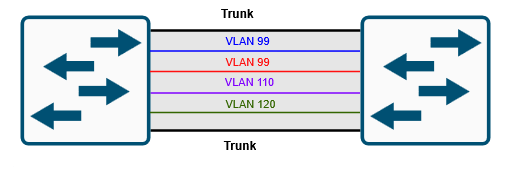
    VLANs are configured on switch interfaces as access ports and interfaces that connect to other switches or routers are configured as a trunk port. Trunk ports are used to carry multiple VLANs over a link between other switches, routers or firewalls. Trunks can be configured to carry all VLANS, or you can configure pacific VLANs that you want to allow on the trunk at which point you have to be careful when adding and removing that you do not remove all VLANs and risk losing connection to the switch, I’m sure we have all made that mistake or if you haven’t it’s just a matter of time. VLAN information is stored in the VLAN database on the switch under the file vlan.dat in the flash memory on a switch. See my example below of a trunk carrying a VLANs.

    Creating a VLAN on a cisco switch is done with the following commands, it’s also a good idea to name your VLANs to for organization and letting others know what those VLANS are for.

    SW1_L2(config)#vlan 90
    SW1_L2(config-vlan)#name MANAGEMENT-VLAN
    SW1_L2(config)#vlan 100
    SW1_L2(config-vlan)#name DATA-VLAN
    SW1_L2(config)#vlan 110
    SW1_L2(config-vlan)#name VOICE-VLAN
    SW1_L2(config)#vlan 120
    SW1_L2(config-vlan)#name GUEST-VLAN

    Assigning a VLAN and voice  VLAN to interfaces

    SW1_L2(config-if)#switchport mode access <- Making the interface an access port
    SW1_L2(config-if)#switchport access vlan 100 <- Assigning VLAN 100 to the interface
    SW1_L2(config-if)#switchport voice vlan 66 <- assigning voice VLAN to the interface

    If you haven’t created the VLAN and named it before you assign an interface to it in some switches the VLAN will be automatically created but it will not be named, you will see a log message that the switch is creating the VLAN for you in the following example.

    SW1_L2 (config-if)#switchport access vlan 120
    % Access VLAN does not exist. Creating vlan 120

    VLANS can be removed with the following command


    SW1_L2 (config)#no vlan 100
    Trunk ports can be configured with the following commands
    SW1_L2(config)#int gi0/2
    SW1_L2(config-if)#switchport trunk encapsulation dot1q
    SW1_L2(config-if)#switchport mode trunk

    To allow certain VLANs to be allowed on a trunk you must issue the following commands

    SW1_L2(config-if)#switchport trunk allowed vlan 90,100,110,120

    To add VLANs to a trunk is where you have to use cation, you must use the add keyword or all the VLANs that are assigned to that trunk interface will be removed and you may lose connectivity to the switch

    SW1_L2(config-if)#switchport trunk allowed vlan add 120

    To remove you must use the keyword remove
    SW1_L2(config-if)#switchport trunk allowed vlan remove 120

    Some troubleshooting commands for VLANs are the following

    Show vlan – shows the VLAN database
    show interfaces status – shows the status of the interface and which VLAN they belong to.

    Show interface switchport – Shows if the interface is set to access or trunk shows the VLAN the interface belongs to, shows if there is a voice VLAN. This command will show you all interfaces you can also do show int gi1/0 switchport.

    Show interface trunk – will show what interfaces are configured as a trunk and which vlans are allowed to pass over that trunk.

    I didn’t cover anything about VTP (VLAN Trunking Protocol) in during this post but I might do a post about that in the next few weeks.


    + ,
  • Home Lab Setup for CCNA/CCNP/Networking

    There is always “the great debate” when you’re studying for your certification exams if you should build your lab with hardware or software. In my opinion, what I have done is gone with both. I think you should have 2-3 routers, 2 switches and sometime of server or your own pc to run some virtual labs either you pick something like EVE-NG, GNS3 or Cisco Modeling Labs.
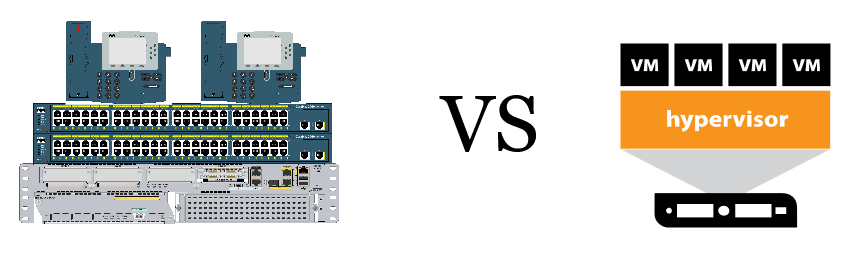
    My reason for having some hardware in your lab is to simply be able to touch it, plug in to it, console into it, be able to see the different interfaces it has, perform a password reset, connect 2 routers together see how the link lights react when you turn up an interface. There are some cheaper options to pick up some older routers and switches on E-Bay, that is where I got all my networking equipment from.

    I do understand not everyone is going to be able to buy hardware. There are different options for running a software networking lab such as EVE-NG, GNS3, and Cisco Modeling Labs, each has their free version and paid version. In my opinion I prefer EVE-NG, which I’ve been using for over 5 years now. I have used all 3 however I keep turning back to EVE-NG unless I’m taking a course online that has a YAML file for a lab on Cisco Modeling Labs. The one downfall I do find with software is sometime there are bugs and sometimes you can spend a little bit more time troubleshooting the software than studying for your certification.

    I’m not familiar with setting up lab environments on cloud options I will not be getting into those.

    + , ,
  • Routers are the brains of a network operating at layer 3 of the OSI model. Routers are the primary device you use to connect to the internet, Routers more packets between other routers. Routers come in all kinds of many different shapes and sizes; you have your small modem/router at home that connects to your ISP or your small office that normally used to provide wireless within your house. There are large enterprises and service providers routers that your ISP would use to connect to the world wide web, there is Software-defined routers for virtual instances in cloud environments and cloud-edge routers, there’s small business size routers for small office home office.

    Routers have different interface connections such Fiber, Ethernet, Serial WAN links and even cellular links. Older routers had ISDN, ATM, ISDN interfaces, there also different virtual interfaces that you can find in a router, such as loopback, tunnel, Port-Channel and sub-interfaces.  There is also interface used to access the management of the router and configure the router using the Console interface or the AUX interface. Console interfaces you need a console cable or USB cable and Terminal emulator Software.

    As well as all the different types of interfaces the hardware inside of the router consists of different times of memory such as Flash that stores the router’s operating system, RAM that runs the running config, and where the ARP table is stored and active packet buffer just like a PC RAM is erased when the router reboots, and NVRAM which is were the startup configuration is stored and does not erase when the router is rebooted or loses power.

    Traffic/packets moves between routers using IP addresses and subnet masks by examining the IP headers IP destination IP address and the packet is sent out the interface that matches the IP destination that is in the routing table. Routing tables are build manually by adding static routers that are entered manually or dynamically entered by configuring routing protocols. Most of the type a dynamic routing protocol is used there is also default routes that are configured. dynamic routing protocol RIP, EIGRP, OSPF, BGP. Each routing protocol has its own flavours of how traffic forwarding is determined.

    Routers have “features” that you’re able to manage, allow, deny, police and isolate different traffic using such things as ACLs, (Access Control Lists), NAT (Network Address Translation), quality of Service (QoS), Virtual Routing Forwarding (VRF) and tunneling protocols. as well as other features, older cisco routers you could configure call manager express for a small office phone system, as well as adding expansion card to support voicemail services and some unique features such as using a router as an access console server by adding asynchronous network modules and an octal cable allowing access to the console port of 32 different devices.


    +
  • This is my currently all in one labs that I’ve setup for my studying for my 300-410 ENARSI

    This lab allows me to configure a number of protocols OSPF, EIGRP and BGP.  I’ve configured route redistribution between OSPF to BGP and BGP to EIGRP allowing me to ping across the whole network not that you would ever do that in real life but playing around in the lab. I’ve also have configured some route maps and conditions forwarding blocking and allowing certain routes from accessing parts of the network.

    Another thing I’ve done is build secure GRE tunnels between the OSPF network and the EIGRP network.

    Future plans are to setup a VRF and MPLS between the OSPF and EIGRP networks, I might setup some monitoring to SNMPS and logging as well as configure some IP SLA and Netflow as they are part of the Exam Topics for ENARSI

    One of the problems I ran in to with this lab, I have it configured using EVE-NG and every time I shut all the routers down and turn them back down all the interfaces stay admin down and would have to go to each device and run a no shut on every single router. I’m not sure if there is a setting to make them come up on their own on EVE-NG. What I did to over come this issue is configuring the Embedded Event manager Applet to turn the faces admin up as soon as the routers reboot, the script runs a cli event that enter enable mode and config mode and interface range, includes all the interfaces and issues an no shut and exits back to privilege mode and this happens as soon as the router boots up it also gives me a syslog message to let me know the command has run. This is the config I’ve setup to accomplish this task.

    event manager applet ENABLE-ALL-INTERFACES
    description Enable all interfaces on startup
    event timer countdown time 30
    action 1.0 cli command “enable”
    action 1.1 cli command “configure terminal”
    action 1.2 cli command “interface range gi0/0-3”
    action 1.3 cli command “no shut”
    action 1.4 cli command “end”
    action 1.5 syslog msg “All interfaces have been enabled

    I also put a default config on all routers to make it so there is no domain look up and console login goes right to privilege mode and that there is no time out. I only recommend doing this only in a lab environment, I do this because If I’m working on a lab and making notes or doing a configure in a note pad before I dump it on to the router so that the router doesn’t time out.

    This is the command I use as a default on most of all my Cisco devices.

    no ip domain lookup
    line console 0
    privilege level 15
    logging sync
    exec-time 0 0


    + ,
  • Network switches mainly operate at layer 2 as well as layer 3 switches. Layer 3 switches combine layer 2 and layer 3 capabilities I’ll be going over mostly layer 2 switch functions for this post. Switch come in 2 different forms such as managed switches and unmanaged switches. unmanaged switches are unable to configured and are plug and play used for basic network needs while managed switches are able to be fully configured. Switches are used to connect all devices to the network such as computers, VOIP Phones, servers, printers and other network devices. Switches interfaces operate at full-duplex mode which breakup collision domains with each interface.

    Traffic moves between a switch basic of MAC addresses that are stored in a MAC address table switches learn the MAC address when a frame enters the switch and associates it the interface it is connected to, the MAC address by default is stored in the MAC address table for 300 seconds (5 Minutes) if there is no traffic on the interface that it is attached to. The switch forward frames based on to the destination MAC address and forwards it out the interfaces that matches the interface address in the MAC address table. If the switch does not know the MAC address of the destination address, it sends out a broadcast to every port on the switch expect for the interface the frame was received. The image blow shows an example of an MAC Address table on from a Switch.

    MAC Address Table

    Management switches that can be configured as different features that can be configured such as VLANs, STP (Spanning Tree protocol), Link Aggregation and Quality of Service.

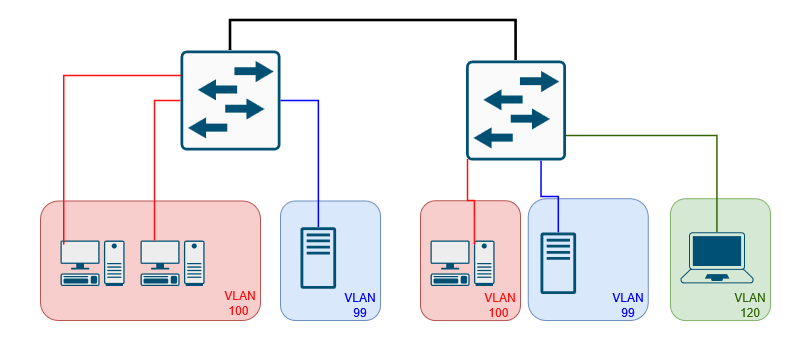
    VLAN – Virtual Local Area Networks: VLANs allow switches to segment traffic on the same switch, VLANs are not able to communicate with other VLANS unless allowed by a router or layer 3 switch. VLANs are used to break up broadcast traffic and are also used for separating different types of traffic such as VOIP, Data, Management traffic which helps with improve network security. See image below for a basic example of VLANS

    STP – Spanning Tree Protocol: STP is used to prevent loops when multiple switches are connected, STP stops broadcast storms from flooding the network, this is done by blocking redundant paths while still providing connectivity. If the primary fails STP will activate a secondary path. There are different mods of STP such as RSPT (Rapid Spanning Tree), PVST+ (Per-VLAN Spanning Tree), RPVST+ (Rapid Per-VLAN Spanning Tree Plus), and MST (Multiple Spanning Tree Procol).

    QoS – Quality of Service: QoS is used to prioritize different types of traffic such as voice, video, data, network management etc. to reduce latency for critical traffic, example would be to prioritize video and voice traffic so that there is no noticeable lag or breaking up in a video or voice call and setting lower priority to network management traffic.

    Link Aggregation – Link Aggregation or EtherChannel is used to bundle physical interfaces to a single logical interface using protocols such as LACP (Link Aggregation Control Protocol) or PAgP Port Aggregation Protocol. Link Aggregation is used to provide redundancy as increase bandwidth by combining 2x 1 gigabyte interface int to a logical 2 gigabyte interface. Configuring Link Aggregation can sometimes cause problems with voice packets arriving out of order and making the call sound broken up.

    Some switch interfaces provide PoE (Power over Ethernet) to provide power to devices such as VOIP phones, security cameras, access points and other IOT devices. There are different PoE types that provide different power outputs.

    Switches are a huge part of everyday network whether it comes to your home network with connecting a few security cameras to large offices connecting 1000s of devices as well as data centers running in a spine and leaf architecture. There are more in depth post I can go in to on some of switching such as breaking down VLANS and how they are configured as well as STP and Link Aggregation, there’s a few other features in a switch that I did not mention that I can discuss such as interface mirror and why you would want to do that in your network for monitoring and troubleshooting or let me know if there’s anything more about switches you’d let me go into more in-depth information about.


    +
  • The 7 layers of “Networking” well kind of, the OSI model standardizes how data is transmitted over the network from what you see on your screen to your data being broken down into 1s and 0s that is send over type of network media such as cable, fiber or wireless. There is also another model that is called the TCP/IP which I’ll compare with another post.

    Data is broken down from Data to Segments to Packets to Frames to Bits. The way I was told to remember the order the way the data is broken down is “Don’t Send Pete For Beer” from one of my college professors and I’ve yet to forget it. Similar with the 7 layers of the OSI model All People Should Take New Data Processing which is a bit dated now of days.

    Application Layer – Closest layer to the user, where the user interacts with the applications that provide network services such as your email client or your web browser. Protocols that you would see at this layer would be HTTP, DNS and SMTP.

    Presentation Layer – Data Encryption occurs at this layer and makes sure that the data is in a usable format. The protocols at this layer are SSL/TLS JPEG.

    Sessions Layer – Maintains the connection between devices by establishing, managing and terminating sessions between devices. Protocols are this layer would be SIP, RPC.

    Transport Layer – Transmits data using transmission protocols such as TCP or UDP. Data is broken down into segments.

    Network Layer – Routing of data occurs at this layer as well as IP addresses, Routers at the device that are at this layer. Protocols include IP, OSPF, EIGRP. ICMP. Data is broken down into Packets

    Data Link Layer – Device to device transmission occurs at this layer within the same network, Physical addressing such as MAC addresses. Switches and NICs are the devices at this layer. Protocols are APR and Ethernet, Data is broken down into Frames.

    Physical Layer – Is the physical connection between devices such as cables and connections. Data is broken up into bits; Hubs are the hardware at this layer. Ethernet Cat, Fiber, radio waves happen at this layer. Protocols are Physical Ethernet and USB.

    +