• This is my currently all in one labs that I’ve setup for my studying for my 300-410 ENARSI

    This lab allows me to configure a number of protocols OSPF, EIGRP and BGP.  I’ve configured route redistribution between OSPF to BGP and BGP to EIGRP allowing me to ping across the whole network not that you would ever do that in real life but playing around in the lab. I’ve also have configured some route maps and conditions forwarding blocking and allowing certain routes from accessing parts of the network.

    Another thing I’ve done is build secure GRE tunnels between the OSPF network and the EIGRP network.

    Future plans are to setup a VRF and MPLS between the OSPF and EIGRP networks, I might setup some monitoring to SNMPS and logging as well as configure some IP SLA and Netflow as they are part of the Exam Topics for ENARSI

    One of the problems I ran in to with this lab, I have it configured using EVE-NG and every time I shut all the routers down and turn them back down all the interfaces stay admin down and would have to go to each device and run a no shut on every single router. I’m not sure if there is a setting to make them come up on their own on EVE-NG. What I did to over come this issue is configuring the Embedded Event manager Applet to turn the faces admin up as soon as the routers reboot, the script runs a cli event that enter enable mode and config mode and interface range, includes all the interfaces and issues an no shut and exits back to privilege mode and this happens as soon as the router boots up it also gives me a syslog message to let me know the command has run. This is the config I’ve setup to accomplish this task.

    event manager applet ENABLE-ALL-INTERFACES
    description Enable all interfaces on startup
    event timer countdown time 30
    action 1.0 cli command “enable”
    action 1.1 cli command “configure terminal”
    action 1.2 cli command “interface range gi0/0-3”
    action 1.3 cli command “no shut”
    action 1.4 cli command “end”
    action 1.5 syslog msg “All interfaces have been enabled

    I also put a default config on all routers to make it so there is no domain look up and console login goes right to privilege mode and that there is no time out. I only recommend doing this only in a lab environment, I do this because If I’m working on a lab and making notes or doing a configure in a note pad before I dump it on to the router so that the router doesn’t time out.

    This is the command I use as a default on most of all my Cisco devices.

    no ip domain lookup
    line console 0
    privilege level 15
    logging sync
    exec-time 0 0


    + ,
  • Network switches mainly operate at layer 2 as well as layer 3 switches. Layer 3 switches combine layer 2 and layer 3 capabilities I’ll be going over mostly layer 2 switch functions for this post. Switch come in 2 different forms such as managed switches and unmanaged switches. unmanaged switches are unable to configured and are plug and play used for basic network needs while managed switches are able to be fully configured. Switches are used to connect all devices to the network such as computers, VOIP Phones, servers, printers and other network devices. Switches interfaces operate at full-duplex mode which breakup collision domains with each interface.

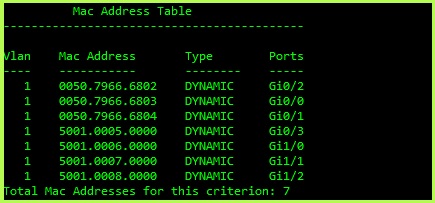
    Traffic moves between a switch basic of MAC addresses that are stored in a MAC address table switches learn the MAC address when a frame enters the switch and associates it the interface it is connected to, the MAC address by default is stored in the MAC address table for 300 seconds (5 Minutes) if there is no traffic on the interface that it is attached to. The switch forward frames based on to the destination MAC address and forwards it out the interfaces that matches the interface address in the MAC address table. If the switch does not know the MAC address of the destination address, it sends out a broadcast to every port on the switch expect for the interface the frame was received. The image blow shows an example of an MAC Address table on from a Switch.

    MAC Address Table

    Management switches that can be configured as different features that can be configured such as VLANs, STP (Spanning Tree protocol), Link Aggregation and Quality of Service.

    VLAN – Virtual Local Area Networks: VLANs allow switches to segment traffic on the same switch, VLANs are not able to communicate with other VLANS unless allowed by a router or layer 3 switch. VLANs are used to break up broadcast traffic and are also used for separating different types of traffic such as VOIP, Data, Management traffic which helps with improve network security. See image below for a basic example of VLANS

    STP – Spanning Tree Protocol: STP is used to prevent loops when multiple switches are connected, STP stops broadcast storms from flooding the network, this is done by blocking redundant paths while still providing connectivity. If the primary fails STP will activate a secondary path. There are different mods of STP such as RSPT (Rapid Spanning Tree), PVST+ (Per-VLAN Spanning Tree), RPVST+ (Rapid Per-VLAN Spanning Tree Plus), and MST (Multiple Spanning Tree Procol).

    QoS – Quality of Service: QoS is used to prioritize different types of traffic such as voice, video, data, network management etc. to reduce latency for critical traffic, example would be to prioritize video and voice traffic so that there is no noticeable lag or breaking up in a video or voice call and setting lower priority to network management traffic.

    Link Aggregation – Link Aggregation or EtherChannel is used to bundle physical interfaces to a single logical interface using protocols such as LACP (Link Aggregation Control Protocol) or PAgP Port Aggregation Protocol. Link Aggregation is used to provide redundancy as increase bandwidth by combining 2x 1 gigabyte interface int to a logical 2 gigabyte interface. Configuring Link Aggregation can sometimes cause problems with voice packets arriving out of order and making the call sound broken up.

    Some switch interfaces provide PoE (Power over Ethernet) to provide power to devices such as VOIP phones, security cameras, access points and other IOT devices. There are different PoE types that provide different power outputs.

    Switches are a huge part of everyday network whether it comes to your home network with connecting a few security cameras to large offices connecting 1000s of devices as well as data centers running in a spine and leaf architecture. There are more in depth post I can go in to on some of switching such as breaking down VLANS and how they are configured as well as STP and Link Aggregation, there’s a few other features in a switch that I did not mention that I can discuss such as interface mirror and why you would want to do that in your network for monitoring and troubleshooting or let me know if there’s anything more about switches you’d let me go into more in-depth information about.


    +
  • The 7 layers of “Networking” well kind of, the OSI model standardizes how data is transmitted over the network from what you see on your screen to your data being broken down into 1s and 0s that is send over type of network media such as cable, fiber or wireless. There is also another model that is called the TCP/IP which I’ll compare with another post.

    Data is broken down from Data to Segments to Packets to Frames to Bits. The way I was told to remember the order the way the data is broken down is “Don’t Send Pete For Beer” from one of my college professors and I’ve yet to forget it. Similar with the 7 layers of the OSI model All People Should Take New Data Processing which is a bit dated now of days.

    Application Layer – Closest layer to the user, where the user interacts with the applications that provide network services such as your email client or your web browser. Protocols that you would see at this layer would be HTTP, DNS and SMTP.

    Presentation Layer – Data Encryption occurs at this layer and makes sure that the data is in a usable format. The protocols at this layer are SSL/TLS JPEG.

    Sessions Layer – Maintains the connection between devices by establishing, managing and terminating sessions between devices. Protocols are this layer would be SIP, RPC.

    Transport Layer – Transmits data using transmission protocols such as TCP or UDP. Data is broken down into segments.

    Network Layer – Routing of data occurs at this layer as well as IP addresses, Routers at the device that are at this layer. Protocols include IP, OSPF, EIGRP. ICMP. Data is broken down into Packets

    Data Link Layer – Device to device transmission occurs at this layer within the same network, Physical addressing such as MAC addresses. Switches and NICs are the devices at this layer. Protocols are APR and Ethernet, Data is broken down into Frames.

    Physical Layer – Is the physical connection between devices such as cables and connections. Data is broken up into bits; Hubs are the hardware at this layer. Ethernet Cat, Fiber, radio waves happen at this layer. Protocols are Physical Ethernet and USB.

    +

    Let’s talk about the basics of networking. Networking is taking the data that you see on the screen to breaking it down from data to bits and transmitting it over some type of media which could be a network cable like CAT5/CAT6, fiber, wireless, or satellite and than once those bits have reached their destination and building them to readable data that you see on your screen, such examples of data that is sent over a network are  email, file sharing, streaming,  IoT devices and many others. This process is standardized using the OSI Model (7 layers) and TCP/IP model (4 Layers).  As well as a mixture of protocols, topologies, and security measures. This is also done while keeping you’re transmitted data secure and protected and private.

    Networks have different types such as

    • PAN – Person Aera Network: This is a small network such as your home, small office/home office network.
    • LAN – Local Area network: This is a network for a small office or a single building
    • MAN – Metropolitan Area Network: This is a number of office building LANs connected together, such as a college or universities that has different campuses around a city.
    • WAN – Wide Area Network: A network that covers large geographical area such as a country or the world. WAN connects multiple LANs and MANs together.

    There are other types such as WLAN (Wireless Local Network) and VPN (Virtual Private Network) and SAN (storage Area Network), and some other types are out there.

    Networks are made up over several different devices such as your modem at home weather it be connected to fiber or cable or even satellite, networks are also made up as routers, switches, firewalls, access points, servers, controls, cables, microwave radios and many other devices and connectors. I will go over some of these devices in more detail in their own posts.

    Networks are evolving as well as technologies with cloud networking, artificial intelligence requiring networks to be more secure with better performance and optimization.


    +
  • In order for your device to connect to the outside world (internet) it requires an IP address. In order to obtain an IP address a DHCP server is required. Your device sends out a broadcast message looking for a DHCP server. Which is the start of the process your device and the DHCP server go through for your device to receive an IP Address

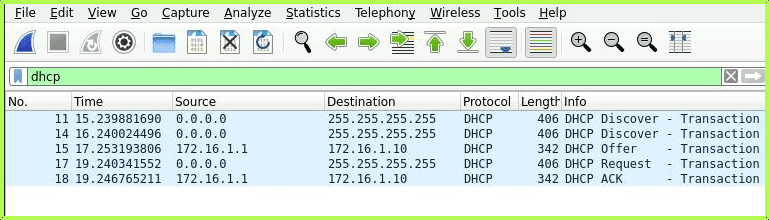
    The 4-stage process known as D.O.R.A which stands for Discovery, Offer, Request, and Acknowledge, explained below

    Discovery – Your device sends out a network broadcast over the network to locate the DHCP Server

    Offer – The DHCP server sends an offer message including the IP address, Subnet mask and default Gateway and DNS server information.

    Request – Your device receives the offer and sends a message to formally request to use the offered IP address information

    Acknowledgement – The DHCP server sends a message back to your device confirming the IP address information.

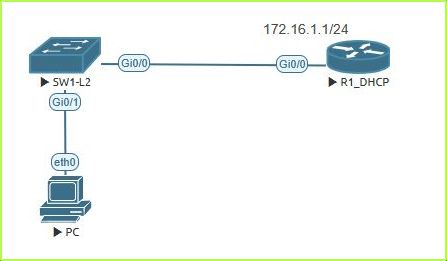
    I’ve set up a small lab with the following topology to show the working of DHCP using a router as a DHCP server

    (DHCP Lab Topology)

    This is the config for the DHCP server on the router

    ip dhcp pool MANAGEMENT
    network 172.16.1.0 255.255.255.0
    default-router 172.16.1.1

    Here is the Packet Capture showing the 4 stage of the DORA process of DHCP.

    (DHCP Packet Capture)

    + ,
  • For my Networking training lab, I have a mix of hardware and software, my hardware is old and a bit out of date, my routers have Serial connections, I could run a Frame Relay lab! However, they do what I want need to, and I will be replacing my routers at some point and adding/removing other devices.

    For my hardware I have the following

    1x Cisco Router

    • Cisco 2611 with ASYNC-16A running as an access server for all my Cisco devices

    3x Cisco Routers

    • Cisco 2811

    2x Cisco Switches

    • Cisco Catalyst 2960 WS-C2960-24PC-S

    2x Cisco Phones

    • Cisco 7940 Series CP-7940G VoIP Phones

    1x Dell Power Edge

    • Dell PowerEdge R630
    (My Cisco Hardware Lab)

    Running on my Dell Power Edge, I’m running ESXI and with that I have installed EVE-NG, CML, and windows, Windows server and a few different versions of Linux.

    The reason that I have Cisco phones is because I do have a small VOIP lab setup that I like to play around with as I’ve worked with CUCM and Unity in the past and still like to do some VOIP labs and keep up with it even though my CUCM and Unity are a bit dated.

    + ,