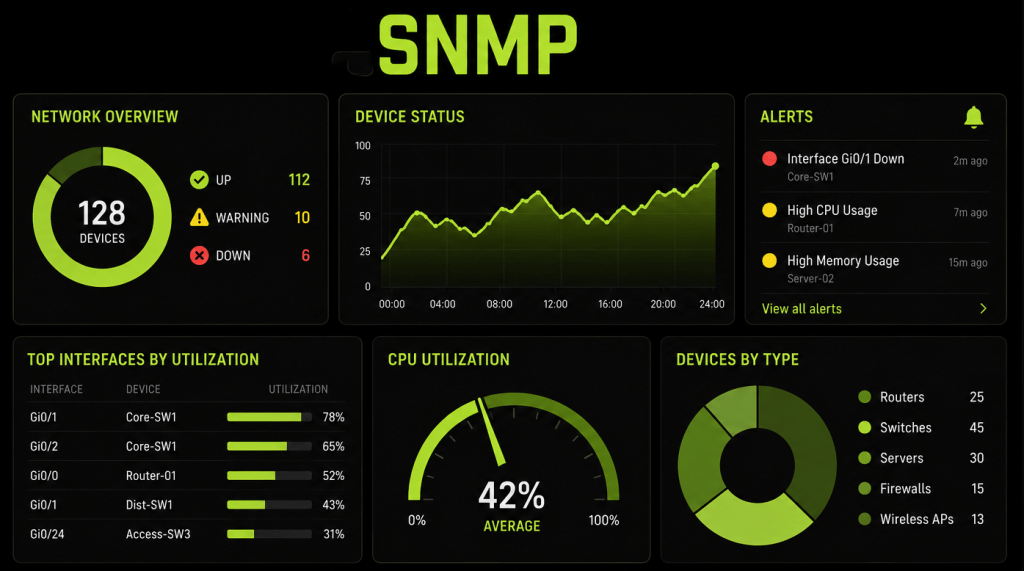
My last post I talked about Network monitoring and the how important network monitoring is and how it is important to have accurate network monitoring. In this post I’m going to go over SNMP (Simple Network Management Protocol (SNMP). SNMP makes it so a tech can know what’s going on within the network without having to login to every single device, picture having a large network with over 100 devices and not having any idea what is going on within the network. SNMP lets you see device status, interface stats, CPU/memory stats. Most network devices have the capability to be configured with SNMP from your firewalls, routers, switches, wireless, servers, printers, UPS and some IoT devices, devices like unmanaged switches do not have the ability to be configured with SNMP given the name unmanaged.
SNMPv2 uses UDP and port 161 & 162.
161 is used for polling, responses between the SNMP manager and the agent (Get, GetNext, Set commands, etc)
162 is used for notifications, alerts and event logs and traps
There are 2 different versions of SNMP which are SNMPv2 and SNMPv3 – SNMPv3 is put in the place to improve security features such as authentication, encryption and access control. SNMP is highly recommend now of days, in my professional experience I still am seeing a lot of companies using SNMPv2 and I think you’ll see still see that for a while some older routers/switches do not support SNMPv3 and yes a lot of companies are still running very old devices out there.
SNMP works using a client/server module that makes up as SNMP manager, managed device and SNMP agent as well as MIBs (Management Information Base) and OIDs. (Object Identifiers).
SNMP Manager – Is the software normally runs on a windows server or windows or Linux environment. Some of the most popular ones are SolarWinds, PRTG and Zabbix. I use PRTG and Zabbix in my home lab. These applications are polling the network devices and receiving the alerts from the devices and normally have a web GUI that the tech can login to see what’s happening with the network.
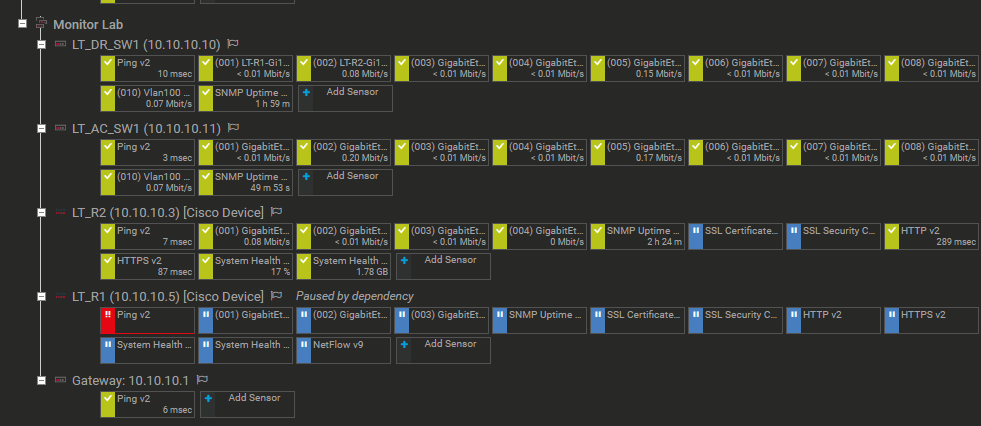
Managed devices – would be your Cisco routers, switches, servers and all the devices I’ve named above.
SNMP Agent – Is the software running within those managed devices such as CPU/Memory usages, Interface status, Fan speeds, device temperature, power supply status.
MIB – is the hierarchical database of the managed objects, MIBs are not the data itself but it is how the data is structured using the Structured of management information (SMI) language (I did have to look this information up. There are common MIBs such as interface MIBs, as well as vendor-specific MIBs written for proprietary hardware and can be uploaded into the SNMP Manager. I’ve worked with vendor-specific for some software that would monitor scan through a number of TV channels for a cable provider that would scan and alert for if any channels had a black screen or the audio was too low which also took some fine tuning to avoid false flags if there was a dark sense in a show or if the channel was off air late at night.
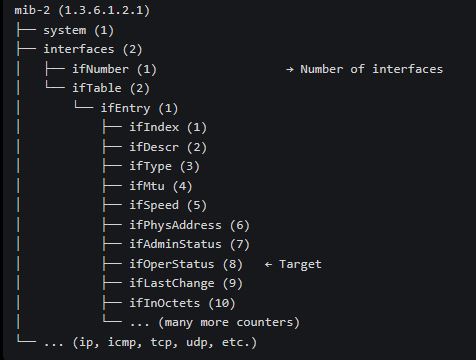
OIDs is the unique dotted decimal string that addresses the specific variable in the MIB tree. For example the OID for an interface status is 1.3.6.1.2.1.2.2.1.8 & 1.3.6.1.2.1.2.2.1.7 for the admin status of the interface. The image above shows an example how you get the OID numbers from the MIB tree to get to the interface status
SNMP communicates between SNMP server and Managed devices / agents with the following
GetRequest – Retrieves the value of one or more specific OIDs
GetNextRequest – used for table traversal, enables the manager to walk entire tables without knowing all instance IDS in advance
GetBulkRequest – An effect way to retrieve large amounts of data in one request significantly reducing overhead compared to GetNext operations.
SetRequest – modifies the value of a writeable object that if SNMP is ReadWrite is configured and can be used to update an interface description or disabling and enabling and interface depending on configuration and permissions on the device and the manager.
Response – agent’s reply containing requested values or error status.
Trap – Unsolicited notifications sent from agent to manager when significant events occur such as interface down, device failure, high CPU unitization. Used for real time alerting
This commutation has very little overhead and is normally setup on its own management network with management VLANs and subnets to segment from other traffic on the network, a lot of causes it’s also setup with the lowest priority for QoS.
Configuring SNMPv2 example on Cisco
This is a simple SNMPv2 that used in Cisco and I will break down each command.
snmp-server community EVANSNETWORKS RO 1
snmp-server location – Rack 2-U3-LT_R1
snmp-server contact – Network Admin Networkadmin@example.com
snmp-server host 10.10.10.5 informs version 2c EVANSNETWORKS
snmp-server community EVANSNETWORKS RO 1
To explain the configuration EVANSNETWORKS is the community string, which is like a plain text password that you configure on both the managed device and the SNMP Manager. This is simple example of a community string; you would want to use something more complex text this is just for an example for this post to prefect people from being able to guess it. The RO stands for Read-only if it was RW it would be Read-write and the 1 is the access list allowing access with this community string. I’m not going to get in to how to configure the access list for this in this post.
snmp-server location – Rack 2-U3-LT_R1
snmp-server contact – Network Admin Networkadmin@example.com
The next is location and contract this are optional and do not need to be configured however I would recommend it as a lot of the SNMP managers will have a spot for the contract some have a build in map that you can put the address or longitude and latitude and that device will show up on map.
snmp-server host 10.10.10.5 informs version 2c EVANSNETWORKS
The next command is the host command with the IP address of the SNMP Manager followed by what you are sending I have informs in this example but you can have traps instead and than the version of SNMP and the community string.
Configuring SNMPv3 on Cisco
To configure SNMPv3 is a lot different than configuring SNMPv3. Here are the commands and I’ll do by best to break down the commands.
snmp-server group NETWORKADMIN v3 priv read HELPDESK access 1
snmp-server user luke NETWORKADMIN v3 auth sha cisco priv aes 256 security access 1
snmp-server host 10.10.10.5 informs version 3 priv luke
snmp-server group NETWORKADMIN v3 priv read HELPDESK access 1
creating a group called NETWORKADMIN with SNMP v3 and priv uses encryption users in this group must authentication and encryption. The read HELPDESK assigns a read-only view named helpdesk to this group and is used to control what OIDs members of this group can are allowed to read. I’ll explain how to configure that at the end and the access list 1 again, I’m not going to show how to configure the access lists in this part.
snmp-server user luke NETWORKADMIN v3 auth sha cisco priv aes 256 security access 1
This creates a username (luke) and assigned it to the group of NETWORKADMIN that was created in the 1st command. The v3 tells it that we are using SNMPv3 than the Authentication protocol we are using is SHA with the password of cisco (again this is only for a lab/testing you would use a more secure password) with priv aes 256 encryption and than followed by access list 1 which is the access list.
snmp-server host 10.10.10.5 informs version 3 priv luke
This command configures the managed device a cisco router in this case to send traps to the SNMP manager at IP address 10.10.10.5 and it’s going to send informs again like in V2 you can also send traps than followed by the version of SNMP and than that it is using authentication + encryption and the user that is configured with the auth/priv settings to send these informs to the server.
To configure with the Helpdesk group that they are allowed to read OIDs members you configure that with the following command. The interface included command will allow the status and statistics of the interfaces. you can also do system included etc there’s a list.
snmp-server view HELPDESK interfaces included
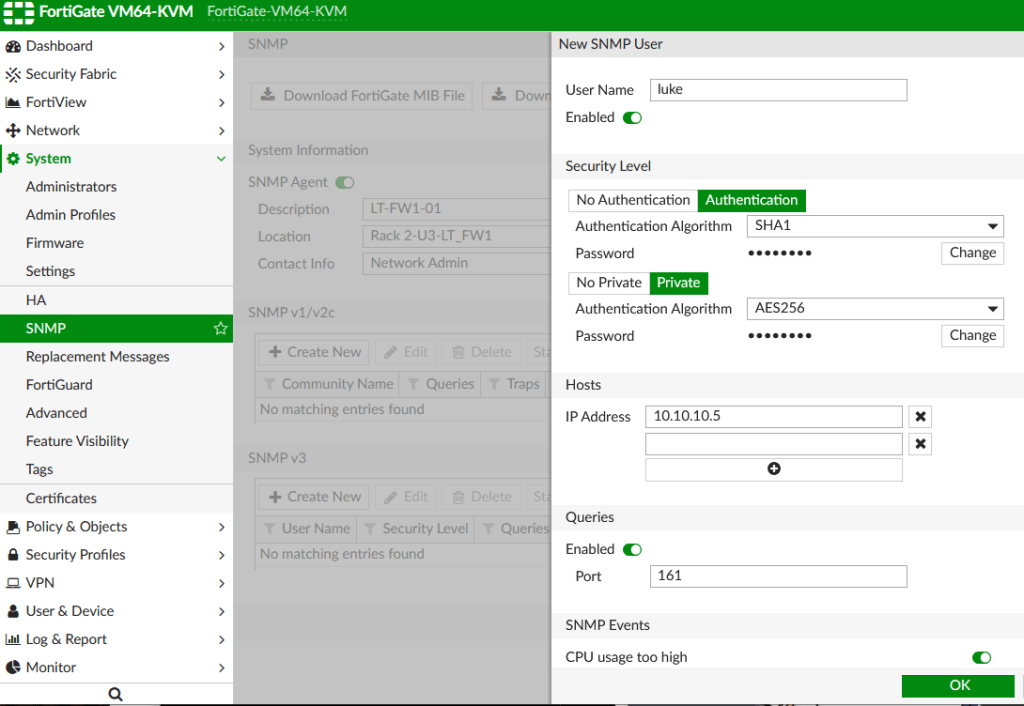
Here is another example configuring SNMPv2 & SNMPv3 on a FortiGate which is a little bit more straight forward and similar using the GUI than CLI
SNMPV2
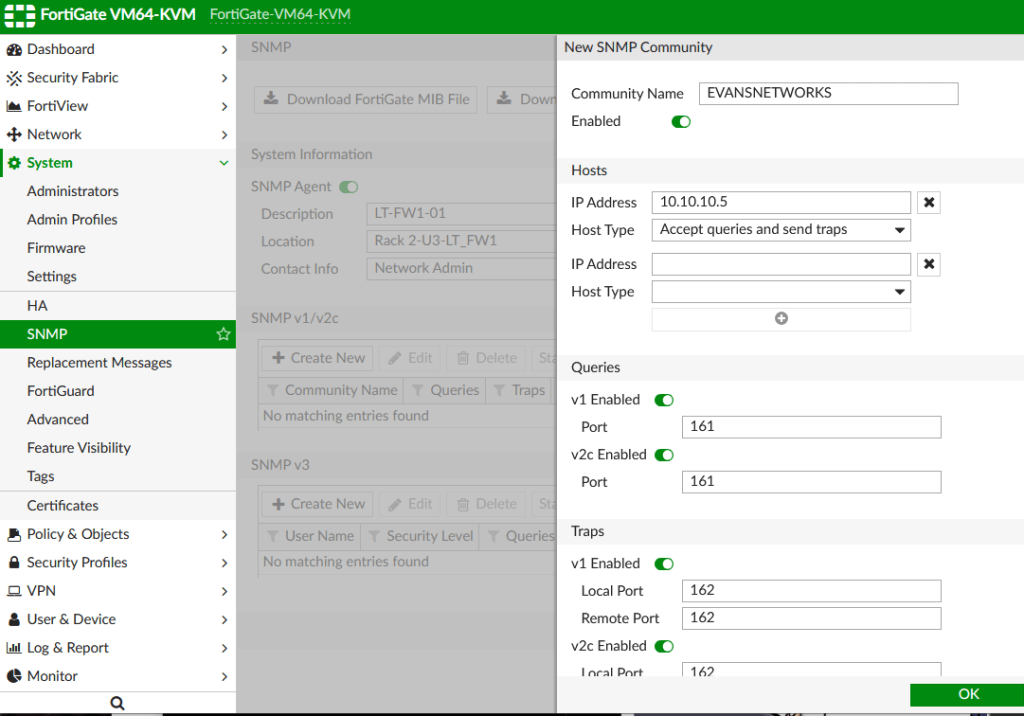
SNMPV3
Troubleshooting SNMP
Most of the troubleshooting with SNMP is checking the configuration, check connectivity to between the managed device and the SNMP manager, checking access lists to make sure none of the subnets are being denied or port 161 or 162 is not being denied. On cisco devices you can do basic show commands
show snmp – will show overall SNMP status and statistics.
show running-config | section snmp – check the SNMP configuration on the router.
Using WireShark or any type of packet capture is a great way to make sure your devices / SNMP manager is getting the SNMP traffic.
You can do an SNMP walk on some devices to test outside of the SNMP manager with the following command
snmpwalk -v2c -c EVANSNETWORKS 10.10.10.5 system
Conclusion
Overall SNMP is a very powerful tool for network monitoring & network management allowing to bring all the monitoring and management into one single tool and being able to have visibility across your network no matter the size of your network or how complex of network you have if you have 5 devices or over 1000 devices. Creating accurate network surveillance/monitoring and management will help you a lot with your network and help with troubleshooting and being able to create alerts and creating custom alerts that you’re able to get via email or SMS or just a pop on your screen will help keep you on top of your network and help with any future issues. Having an alert that your main ISP link is always hitting 90% usage during the day and making the case that it needs to be upgraded or if a hard drive on a server is getting full and needs log files removed or backed up. Being able to see an alert that your cisco router or switch has a different running config and startup config before a power outage happens or a fan fails. So many reasons to have SNMP setup on your network but also keep in mind SNMPv3 has more security features.


Leave a Reply